¶ Lidarr FAQ
This page answers the questions that come up most often in the Lidarr help channel, Reddit, and forums. Longer troubleshooting flows and conceptual explanations have their own dedicated pages. This FAQ links to them when a full walkthrough helps.
If you don't find your question here, the most common landing spots are Metadata Troubleshooting (anything about missing or out-of-date MusicBrainz data), Import Troubleshooting (downloads that finish but don't import), Troubleshooting (general runtime issues), and Tips and Tricks (power-user recipes). Ask in Discord or on the subreddit if the wiki doesn't answer it. Recurring questions feed back into this FAQ.
¶ Basics
¶ How does Lidarr work?
Lidarr doesn't search for files that are missing or haven't met quality goals on a schedule. Instead, it queries your indexers and trackers at a steady cadence for all newly posted releases, compares that feed with your monitored albums, and downloads matches. At an RSS interval of 15–60 minutes, this amounts to 24–100 queries per day and covers a library of any size. It only catches releases going forward from when you added them, though.
For albums released in the past, use Wanted → Missing or Wanted → Cutoff Unmet, or click the search button on the album's page. Adding an album with the Start search for missing album checkbox ticked does the same thing at add-time.
If Lidarr has been offline for a while, it pages back through each indexer to find the last release it processed. This only works if the indexer supports paging and the outage wasn't too long.
When Lidarr searches actively (rather than watching the RSS feed passively):
- User- or API-triggered search from the album/artist page, or from Wanted → Missing / Cutoff Unmet.
- Adding an artist or album with Add and Search.
- Albums discovered during an artist metadata refresh (for example, a new album MusicBrainz adds after you've already added the artist).
¶ How do I update Lidarr?
Lidarr runs on one of three release branches. Pick one under Settings → General → Updates (show advanced):
master— default, stable. Updates about monthly after testing indevelopandnightly.develop— beta. New features and fixes land here afternightly. Updates weekly or biweekly, taggedpre-releaseon GitHub.nightly— alpha. Builds on every commit that passes CI. Required for plugin support (see Plugins). Expect occasional breakage and plan to recover a failed update yourself.
Switching from
nightlyordevelopback tomastermay not be possible without restoring an older database backup. Database schema migrations are one-way. If a newer branch introduced columnsmasterdoesn't know about, the older version will refuse to start with errors like Error parsing column N. If you already switched and need to go back, restore from a pre-switch backup.
Installing the update:
- Native installs — System → Updates. Any available update has an Install button.
- Docker — repull your image tag and recreate the container. Don't run the in-app updater inside a Docker container. That's a primary Docker anti-pattern and can put the image and the mounted data out of sync.
Docker tag-to-branch mapping:
master (stable) |
develop (beta) |
nightly (alpha) |
|
|---|---|---|---|
| hotio | release |
testing |
nightly |
| LinuxServer.io | latest |
develop |
nightly |
Branch-switching caveat. Identical-version branch swaps are safe. Swapping forward (for example,
master→develop) is typically safe. Swapping backward (for example,develop→master) is the path that can fail. If in doubt, check in Discord with the development team before switching, and take a backup either way.
¶ Finding music and MusicBrainz
¶ Why doesn't artist X show up in search?
A few common causes:
- Name variant mismatch. Lidarr searches by the artist's primary MusicBrainz name. If you're searching by an alias, a translation, or a stylisation that differs from the primary name, the result may not appear. Search by MBID instead. See Search by MBID below.
- Not in MusicBrainz. Lidarr only knows about artists MusicBrainz knows about. If the artist is absent from MB entirely, add them there. See Metadata Troubleshooting → Updating MusicBrainz. New additions can take up to an hour to reach Lidarr.
- Unknown release type on every album. An artist whose releases MB has catalogued as
unknownwill appear to be "missing" in most metadata profiles. The artist is there; the metadata profile is filtering everything out. See Why does Lidarr only show studio albums? and Metadata Troubleshooting.
¶ Search by MBID
Lidarr supports three prefixes for direct MBID lookup. All three work the same way and are case-insensitive:
| Prefix | Example |
|---|---|
lidarr: |
lidarr:9255f594-b912-4bdf-87a2-ada04502a459 |
lidarrid: |
lidarrid:9255f594-b912-4bdf-87a2-ada04502a459 |
mbid: |
mbid:9255f594-b912-4bdf-87a2-ada04502a459 |
Type any of these into the Lidarr search box. Lidarr tries to resolve the MBID as an artist first. If that doesn't match, it tries as an album (release group). This means you can use the same prefix format regardless of whether you're looking up an artist or an album.
Release vs Release Group is the single most common mistake. For albums, Lidarr wants the Release Group MBID, not a Release MBID. A release group is "the 2005 album"; a release is "the 2005 US CD pressing" or "the 2005 UK vinyl." If you paste a release MBID, the lookup will fail or return unexpected results.
¶ Why does Lidarr only show studio albums, how do I find singles or EPs?
Lidarr filters what to track per artist through a Metadata Profile (Settings → Profiles → Metadata Profiles). The default profile includes only Studio albums, which is why singles, EPs, live albums, compilations, and remix collections don't appear on a fresh install.
Adjust the profile rather than per-artist settings for a library-wide change:
- Album Types — pick which MusicBrainz release-group types (Album, Single, EP, Live, Compilation, Remix, Soundtrack, Other) to include.
- Release Statuses — Lidarr includes Official by default; Promotion, Bootleg, and Pseudo-Release are opt-in. If nothing shows up for an artist and you know they've released music, check whether the MB releases have an
unknownstatus and fix that upstream.
A single isn't a "short album." Singles are their own release-group type in MusicBrainz. Enabling "Single" in your Metadata Profile adds single-type release groups (typically one track each) to your library. It doesn't show short albums.
To apply a changed profile to existing artists, go to Library, select the artists, and use Edit → Metadata Profile.
¶ How can I find a MusicBrainz ID?
- Search the artist, release group, or release on MusicBrainz. For albums, set the search type to Release Group.
- Open the entity page. The MBID appears under the Details tab, or at the end of the URL (the UUID after the last slash).
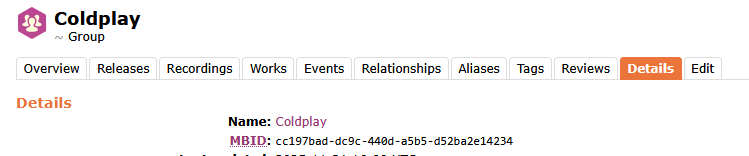
See Search by MBID for how to use the MBID directly in Lidarr's search box.
¶ I can't find a release in Lidarr but it's on MusicBrainz
Three common causes:
- Propagation lag. Lidarr's copy of MusicBrainz refreshes hourly via the Servarr metadata server. If you edited MB in the last hour, wait a refresh cycle before troubleshooting further.
- Unknown release type. If the MB release group has
Type: UnknownorStatus: Unknown, most metadata profiles filter it out. Fix the type at MusicBrainz. - Video recordings. MusicBrainz marks some recordings as video (music videos, live video streams, etc.). Lidarr is audio-only and skips releases where MusicBrainz flags tracks as video — they won't appear in searches and Lidarr won't grab them. If an expected release has 0 audio tracks because MusicBrainz marks all recordings as video, there's nothing Lidarr can do until an audio release exists.
- Metadata server cache needs busting. This is rare but happens, especially after large MB edits. The full flow, including the
!refreshbot command, is on Metadata Troubleshooting.
If none of those apply, the full troubleshooting flow is on Metadata Troubleshooting.
¶ I added an album but searches fail with "Album duration is 0"
MusicBrainz doesn't have track lengths for this release (they appear as ??? on the MB release page). Lidarr needs the total duration to check a grabbed file's size, and with a duration of 0 it rejects every result. Fix the track lengths on MusicBrainz, refresh the artist in Lidarr, then retry the search. Full steps are in Troubleshooting → Release Rejected: Album duration is 0.
¶ Importing and renaming
¶ I'm having trouble importing my artists, what could it be?
Imports fail in one of a few ways:
- The download finished but Lidarr won't import it. This is almost always a match-quality rejection. Lidarr couldn't find a MusicBrainz release that resembles the file well enough. See Import Troubleshooting for the match-quality rules, the fingerprinting fallback, when manual import is the expected path, and how to drive it.
- You're importing an existing library and the match fails. See Importing an Existing Library for the fresh-install walkthrough and the lenience rules that apply to library imports.
- Lidarr can't read or write the folder. The user account Lidarr runs as must have read and write access to both the download folder and the destination root folder. On Linux this is a UID/GID/permissions issue on a mount; on Windows it's Lidarr running as
LocalServicewhich can't reach a network share. See Why can't Lidarr see my files on a remote server? for the Windows case. - Untagged or badly tagged files. Files with generic filenames like
track01.mp3and no tags give Lidarr nothing to match on. Run a tagger such as MusicBrainz Picard or Harmony before importing. See [Import Troubleshooting → Untagged or badly tagged files](/lidarr/import-troubleshooting#untagged-or-badly tagged-files).
¶ I copied files into Lidarr's root folder but Lidarr can't see them
Lidarr owns its root folder. It is the only thing that should be placing files there. Copying or moving files directly into the root folder -- or into an artist subfolder inside it -- bypasses the import pipeline, and Lidarr will not pick them up.
To import files you obtained outside of Lidarr (a Bandcamp download, for example):
- Place the files in a folder Lidarr has read access to that is not the root folder -- your download client's completed folder works well.
- In Lidarr, go to Wanted -> Manual Import, point it at that folder, and work through the match dialog.
Lidarr then moves the files into the root folder itself, registers them in its database, and tracks them normally from that point on.
¶ How can I rename my artist folders?
The same process applies for moving or changing artist paths.
For a handful of artists:
- Open the artist page.
- Click the Edit button in the top nav.
- Change the path (or the root folder, which moves the folder under a different root).
- Select Yes, move the files if prompted.
For a bulk rename:
- Library → Select Artists.
- Tick the artists that need their folders renamed.
- Click Edit.
- Set the Root Folder to the same root folder those artists already use. This prompts Lidarr to check each artist's folder name against the current naming settings.
- Select Yes, move the files.
If a rename appears to have happened in Lidarr but the folder name on disk hasn't changed, see Why does Lidarr keep trying to rename the same folders? below. That's almost always a case-only rename on Windows, which is a filesystem-level no-op.
Renaming outside Lidarr breaks the link between Lidarr's database and the files on disk. Lidarr tracks files by path. If you rename a folder at the OS level, Lidarr treats the files as missing and may re-download them. Always rename through the Lidarr UI when possible. See Renaming or moving files outside Lidarr for a full explanation and recovery steps.
¶ Why does Lidarr keep trying to rename the same folders?
Almost always a case-only rename on Windows. Windows filesystems treat Artist and artist as the same path. When Lidarr renames ARTIST to Artist, the operation reports success but the folder name on disk doesn't change. Lidarr then sees the folder still needs renaming, and the cycle continues.
The fix is a two-step manual rename (Artist → Artist_tmp → Artist) so the filesystem actually commits the case change. On Linux and macOS this isn't an issue because those filesystems are case-sensitive.
¶ What audio formats does Lidarr support?
Lidarr recognises the following file extensions:
.mp2, .mp3, .m4a, .m4b, .m4p, .ogg, .oga, .opus, .wma, .wav, .wv, .flac, .ape, .aif, .aiff
Files with any other extension are invisible to Lidarr. It won't import, rename, or manage them.
A subset of these formats have named quality definitions that quality profiles and upgrade rules can target: FLAC, APE, WavPack (.wv), WAV, and WMA. The remaining formats (mp3, m4a, ogg, opus, etc.) fall under Unknown quality, so quality-based upgrade rules treat them as interchangeable. To distinguish between, say, MP3 and AAC for upgrade purposes, use Custom Formats rather than quality thresholds.
If a file with a supported extension still isn't importing, the issue is typically match quality rather than format. See Import Troubleshooting.
¶ Can Lidarr prefer a specific pressing or format during import?
No, not automatically. Lidarr's import matcher selects the MusicBrainz release (pressing) that scores closest to the files on disk using tags, filenames, track counts, and durations. Format (CD / Digital Media / Vinyl / Cassette) isn't a preference signal when comparing candidates of similar quality. Lidarr matches a web rip to whichever pressing best fits the file metadata, regardless of whether MusicBrainz lists that pressing as "Digital Media" or "CD."
Why: Lidarr's distance scoring gives heavy weight to MusicBrainz Recording and Release IDs (weights 10.0 and 5.0 respectively), artist/album/title text (3.0 each), track count, and duration. The media_format field carries a weight of only 1.0 and only penalises releases whose format MusicBrainz marks as Unknown. Files tagged with accurate MBIDs override almost everything else. Files without MBIDs fall back to text matching.
Release profiles and custom formats don't help here. Both work at grab/download time, filtering and scoring releases from indexers before anything reaches a download client. They have no effect at import time at all: a file that would have been grab-rejected by a release profile (wrong edition, blocklisted term, missing required term) will still import if it lands in a monitored folder or goes through manual import. The import pipeline runs a completely separate set of checks (free space, match quality, upgrade eligibility) and release profiles aren't among them.
An open feature request to expose format/country/status as profile preferences has been open since January 2018 and isn't implemented yet.
What you can do:
- Use manual import and pick the specific pressing from the release-selection dialog. Manual import lets you choose the artist, release group, and specific release (pressing). Lidarr attaches the files to whatever you select, regardless of what the automatic matcher would have chosen. See Import Troubleshooting → Controlling which pressing gets matched.
- Tag your files with the correct MusicBrainz Release MBID before importing. If the
MusicBrainz Album Idtag contains the Release MBID for the pressing you want, thealbum_iddistance (weight 5.0) pulls the score strongly toward that specific pressing. MusicBrainz Picard, beets, and similar taggers can write this tag. - Switch the active release on the album page. The album page shows which release Lidarr currently treats as canonical. You can change it. Lidarr will re-match files against that release if you trigger a new import.
¶ Lists and automation
¶ Why are list sync times so long and can I change it?
List sync is intentionally slow. Lists are an "add eventually" tool, not an "add now" tool. The original sync cadence overwhelmed the upstream Servarr metadata server when users ran 10-minute list refreshes.
If you need faster feedback for a specific list:
- Trigger a list refresh manually (Settings → Import Lists → the list → Refresh).
- Script the refresh via the API:
POST /api/v1/commandwith body{"name": "ImportListSync", "definitionId": <list-id>}using your Lidarr API key. See API Docs for the full command reference. A typical pattern is a cron job that polls the source (Spotify playlist, Last.fm top-tracks, etc.) and pokes Lidarr when something changes. - Add releases directly in Lidarr rather than going through a list.
Spotify import lists can trigger rate-limit errors (429s). When Lidarr processes a Spotify list, it resolves Spotify IDs to MusicBrainz IDs via the metadata server cache. Any ID not in the cache requires an individual lookup, and enough of those in quick succession will hit the rate limit. To resolve this, wait it out, or add the missing Spotify album links to MusicBrainz so they get cached. See Metadata Troubleshooting → Spotify import list rate limiting for the full mechanism.
¶ Does Lidarr download lyrics, liner notes, or other extras?
No, by design. Lidarr fetches the release audio files and tags/organises them. It doesn't bundle lyrics, liner notes, or other secondary files.
For lyrics, use a tag-aware companion tool:
- beets — a music tagger and library manager. Its
lyricsplugin fetches lyrics into tag fields during beets import. - MusicBrainz Picard — has community plugins for lyrics and extra tag sources.
These can run alongside Lidarr against the same library. Run them after Lidarr imports so they don't fight over file ownership.
¶ What about Custom Scripts / Custom Formats / post-processing?
Lidarr supports two distinct extension points:
- Custom Scripts — hook scripts that fire on Lidarr events (on-grab, on-import, on-rename, etc.). Useful for external notifications, custom file copies, or integration with a local library manager. See Custom Scripts for setup and the list of events.
- Custom Formats — rules for scoring and filtering releases based on release-name patterns, indexer flags, source, language, etc. Used to prefer (or reject) specific sources, encoders, or quality profiles beyond what the base quality definitions allow. See Settings → Custom Formats.
Custom Formats score releases. Custom Scripts respond to events. They don't overlap in scope.
¶ Integrations and external tools
¶ Does Lidarr support Deemix, slskd, or similar tools?
Deemix and slskd are third-party tools. Deemix is a Deezer downloader. slskd is a Soulseek daemon. Historically there was no built-in way to integrate them with Lidarr, and users cobbled together import scripts.
This changed with the plugin architecture. As of the nightly branch, Lidarr supports third-party plugins that add indexers and download clients for streaming services, peer-to-peer networks, and other sources. This is the fully supported way to extend Lidarr's source coverage. See Plugins for install instructions and the current compatibility notes.
Common community plugins cover exactly this ground: Soulseek, Deezer, Tidal, and similar. Plugin names and availability shift faster than this FAQ can track, so the Plugins page is the current reference.
Running the plugin branch requires switching to nightly (see How do I update Lidarr?). Database schema migrations mean switching back to master or develop afterward requires restoring a pre-switch backup.
¶ Which download clients does Lidarr support?
Usenet (NZB): SABnzbd, NZBGet, NZBVortex, Pneumatic, usenet blackhole.
Torrent: qBittorrent, Transmission, Deluge, rTorrent / ruTorrent, uTorrent, Vuze, Flood, Hadouken, torrent blackhole.
More clients are available via Plugins on the nightly branch, primarily streaming-service and P2P-network clients not covered by the built-in list.
For setup recipes, the TRaSH Guides — Downloaders section covers the common clients in more depth than the Lidarr wiki does.
¶ Does Lidarr integrate with Plex, Emby, or Jellyfin?
Not directly. Lidarr manages the library on disk. Media servers read that library and serve it to clients. The common pattern is to share the root folder:
- Lidarr writes files to
/media/music(or your preferred path). - Plex / Emby / Jellyfin point a music library at the same
/media/music. - Lidarr fires an on-import / on-rename Custom Script (optional) that calls the media server's API to refresh the affected folder, avoiding a full library rescan.
There's no Lidarr plugin for any media server. The integration is at the filesystem level, and the Custom Script for library-refresh on import is the only wiring required.
¶ VPNs, Jackett, and the *ARRs
See the dedicated VPN Guide. Short version: only your BitTorrent client needs to be behind a VPN in most jurisdictions. The *Arr apps themselves shouldn't be, because shared VPN endpoints cause rate limits, captchas, and Cloudflare blocks for metadata lookups.
¶ Errors and authentication
¶ Forced Authentication
If Lidarr is reachable from outside your LAN, enable authentication. Trackers and indexers increasingly require it.
As of Lidarr v2, authentication is mandatory. The config file must include AuthenticationType and AuthenticationMethod.
¶ Authentication Method
Basic— browser-native username/password pop-up. Deprecated; a future major version will drop it.Forms— login page. Recommended for all UI-exposed installs.External— disables app authentication entirely. Only use this for installs behind an external authentication layer (Authelia, Authentik, nginx auth). Configurable via the config file only. Don't use this unless the external auth is actually enforced on the request path.
¶ Authentication Required
If the UI only needs auth on remote access (not on LAN), set Settings → General → Security → Authentication Required to Disabled For Local Addresses. In the config file that's <AuthenticationType>DisabledForLocalAddresses</AuthenticationType>. The other valid value is Enabled.
¶ Help I have locked myself out
To reset a forgotten username or password, disable authentication by editing config.xml in your Lidarr Appdata Directory:
- Stop Lidarr.
- Open
config.xmlin a text editor. - Find the
<AuthenticationMethod>…</AuthenticationMethod>line (it will sayBasicorForms). If there are two entries in the file, delete both. - Remove the entire line.
- Start Lidarr.
The UI will open without a password and prompt you to set a new password and authentication method on first access.
¶ I am getting an error: Database disk image is malformed
- Error says Error creating log database — the corruption is in
logs.db. Rename or delete that file. It only contains command history and log entries, none of which are load-bearing. Lidarr recreates it on next start. - Error says Error creating main database or just database disk image is malformed — the corruption is in
lidarr.db, which is the real database. Do not delete it. Follow the recovery steps below.
Your options, in order of increasing effort:
- Restore from backup. See Tips and Tricks → Backup/Restore. This is always the best first move.
- Try the SQLite
.recovercommand. See Useful Tools → Recovering a corrupt DB for the CLI path, or Recovering a corrupt DB (GUI) for the Windows / GUI path. - Start fresh. Delete
lidarr.db(and the.db-wal/.db-journalsiblings) and let Lidarr recreate from scratch. You'll lose your library metadata and have to re-add artists.
Common causes:
- Running the database on a network drive (NFS, SMB, or other non-local storage). SQLite isn't designed for this and will corrupt sooner or later. See the SQLite upstream warning. The AppData folder (Docker:
/configmount) must be on local storage. This is the most common root cause. - Permissions. If the Lidarr user can't write to the database file, SQLite can leave it in a corrupt state. This primarily affects new installs, migrated installs, or systems where the running user/group changed recently.
- mergerFS with
direct_ioenabled. SQLite uses mmap, which mergerFSdirect_iodoesn't support. See mergerFS docs. Removedirect_iofrom the mergerFS options.
¶ I use Lidarr on a Mac and it stopped working. What happened?
Most likely one of the databases is corrupt — a known macOS issue when the system sleeps or crashes during a database write. See I am getting an error: Database disk image is malformed above for recovery.
If the database isn't the cause and Lidarr still won't start, post in the subreddit or Discord with the logs.
¶ Why can't Lidarr see my files on a remote server
For all operating systems, the user Lidarr runs as must have both read and write access to the remote share.
Linux mount flags:
- NFS mounts — add
nolockto the mount options. - SMB mounts — add
nobrlto the mount options.
Windows — the common cause is the service account:
Lidarr installed as a service runs under LocalService by default. LocalService doesn't have access to protected remote file shares, which is almost always why a networked path appears empty or permission-denied in the Lidarr UI.
Two fixes:
-
Run the Lidarr service as a user that has share access.
- Administrative Tools → Services → stop the Lidarr service.
- Right-click → Properties → Log On tab.
- Change the service user to a domain or local account with access to the share.
- Start the service.
-
Use a UNC path instead of a mapped drive. Mapped drives are per-user.
LocalServicecan't seeZ:even if your desktop session can. Configure Lidarr paths as\\server\share\pathinstead, and make sure the share allows access to whichever user the service runs as.